Configure a pipeline run
nf-core pipelines are configured at several levels: environment variables for Nextflow itself, parameters for the pipeline, and config files for execution.
Using nf-core/demo, this tutorial explains each layer as worked examples.
By the end you will have:
- Supplied pipeline parameters on the command line and from a
params.yamlfile. - Activated profiles to switch between container engines and test scenarios.
- Layered a custom
custom.configfile with process-specific overrides. - Used
ext.args(the convention forconf/modules.config) to extend a tool’s command line without editing the module. - Used
NXF_*environment variables to control Nextflow’s runtime. - Understood which configuration source overrides which.
You need the following:
- An internet connection
- Nextflow version 25.10.4 or later
- A container engine, such as Docker, Singularity, or Conda. See Software dependencies
Baseline run
Before changing anything, run the pipeline with no custom configuration so you have something to compare against.
This baseline run relies entirely on nf-core/demo’s built-in defaults.
No environment variables, no custom parameters, and no extra config files are set.
In each of the following steps you will replace one of these defaults and observe the effect.
Start with a plain test invocation as your reference point, replacing docker with your preferred software dependency manager (for example, singularity or conda).
nextflow run nf-core/demo -r 1.2.0 -profile test,docker --outdir resultsIn the background, this run uses three default configuration sources that you will override in the next steps:
- The pipeline’s internal
nextflow.configand thetestanddockerprofiles - Default pipeline parameters (path to input samplesheet, the customisable MultiQC title, and others). See the nf-core/demo parameters page and
nextflow_schema.json - Your default Nextflow runtime settings (for example, work directory and Nextflow version)
Keep the results/ directory from this run.
You can compare it to the output of later steps to confirm your configuration changes took effect.
Configure with parameters
Pipeline parameters are the knobs and switches a pipeline exposes to control how its steps run.
For example, inputs, outputs, skip flags, reference data choices, and tool toggles.
They’re documented per pipeline.
For nf-core/demo, see the parameters reference and nextflow_schema.json.
You can supply them two ways:
- Directly on the command line
- From a
params.yamlorparams.jsonfile.
The two forms are interchangeable, and you can mix them.
CLI flags override values in a parameter file.
-
Set parameters on the command line. Any parameter is supplied as a
--<name>flag:nextflow run nf-core/demo -r 1.2.0 -profile test,docker --outdir results_customcommandline --multiqc_title "nf-core/demo command line configured run"Output now goes to
results_customcommandline/instead ofresults/, and--multiqc_titlesets the MultiQC report title. -
For longer parameter sets, create a
params.yamlfile:params.yaml outdir: results_customparamsfilemultiqc_title: "nf-core/demo parameter file configured run" -
Apply it with
-params-file:nextflow run nf-core/demo -r 1.2.0 -profile test,docker -params-file params.yamlOutput now goes to
results_customparamsfile/instead ofresults/. Openresults_customparamsfile/multiqc/nf-coredemo-parameter-file-configured-run_multiqc_report.htmlin a web browser to confirm the report title was set.
Both JSON and YAML formats are supported for parameter files. Parameter files make runs easier to reproduce and share. You can publish them alongside results so others can re-run the exact same configuration. See Pipeline parameters for more information.
nf-core pipeline parameters must be supplied on the command line or via -params-file.
Use config files for executor and computational resource settings, and parameter files for pipeline parameters.
Configure with config files
Config files are the most flexible configuration layer.
They control both where the pipeline runs and how it runs.
For example, which executor submits jobs (local, slurm, awsbatch), how much CPU and memory each process requests, what Nextflow does when a process fails, which container registry to pull from, where intermediate work lives, and how to apply settings to specific steps.
They’re the right place for any setting that depends on your infrastructure rather than on what the pipeline does scientifically.
Nextflow assembles its final configuration from several config files.
Nextflow picks up some config files automatically, some you switch on by name with -profile, and others you point it at explicitly with -c.
The sections that follow cover all three approaches and then show how to target specific processes inside any config file.
Auto-loaded nextflow.config files
Nextflow looks for config files in three places without being told.
- The pipeline’s own
nextflow.configin the project directory. Included with every nf-core pipeline’s source code. For example,nf-core/demo’snextflow.config, which loadsconf/base.configand declares every shipped profile. Don’t edit this file. See the warning in Configuration options. $HOME/.nextflow/config. Your personal config, applied to every Nextflow run you launch. Good for settings that should follow you across all pipelines, such as your Singularity cache location or a default executor for your workstation.nextflow.configin the launch directory. Applied automatically whenever you run Nextflow from that directory. Good for per-project or per-working-directory settings you don’t want to retype each time.
Add a nextflow.config in your current directory:
process { cpus = 1 memory = 2.GB}Re-run the baseline command. Nextflow picks the file up automatically, without a -c flag:
nextflow run nf-core/demo -r 1.2.0 -profile test,docker --outdir results_customnextflowconfigCompare in your web browser results/pipeline_info/execution_report_<datetimestamp>.html with results_customnextflowconfig/pipeline_info/execution_report_<datetimestamp>.html, looking at the table under the ‘Tasks’ section.
Observe that the process NFCORE_DEMO:DEMO:COWPY has changed its memory from 4.GB to 2.GB, as specified in the new nextflow.config.
Use $HOME/.nextflow/config for personal defaults that follow you across machines that apply to all Nextflow runs, and a launch-directory nextflow.config for project-specific settings.
Reserve -c (covered below) for one-off overrides and shared project configs that should live alongside your pipeline command.
Activate bundled settings with profiles
A profile is a named bundle of configuration that lives inside a config file under the profiles scope.
Use profiles to switch between configuration sets stored in a single config file.
You activate one or more with the -profile flag.
You’ve been using profiles since Baseline run. -profile test,docker activates two: test (a small public dataset) and docker (use Docker to manage software).
Every nf-core pipeline comes with a standard set of profiles:
-
Software profiles:
docker,singularity,apptainer,podman,conda,charliecloud,shifter(one per container engine or environment manager). -
Test profiles:
test(a small dataset for quick verification) andtest_full(the full-size dataset used in CI).NoteThe
test_fullprofile in nf-core/demo is also a very small test dataset that can be used for testing. In other pipelines these can be much larger, but produce realistic output. Verify the size of tests of other pipelines before attempting totest_fullon smaller machines such as laptops. -
Institutional profiles: contributed to nf-core/configs and loaded automatically by every nf-core pipeline. Activate one with
-profile <institution>if your cluster has one. See Use shared institutional configs.
Combine profiles with commas. Order matters — later profiles override earlier ones where they overlap:
nextflow run nf-core/demo -r 1.2.0 -profile test,docker --outdir resultsIn this example, options in the docker profile override matching options in test.
You can also define your own profile for settings you’d like to reuse.
Add a mymachine profile to the bottom of your existing launch-directory nextflow.config:
profiles { mymachine { process { cpus = 2 } }}Activate it alongside the existing profiles:
nextflow run nf-core/demo -r 1.2.0 -profile test,docker,mymachine --outdir results_customprofileCompare the ‘Tasks’ section of results_customnextflowconfig/pipeline_info/execution_report_<datetimestamp>.html with results_customprofile/pipeline_info/execution_report_<datetimestamp>.html in your browser.
Observe that the process NFCORE_DEMO:DEMO:COWPY has changed the CPUs from 1 to 2, as specified in the new nextflow.config.
The mymachine profile here only bumps CPUs to 2, which the test profile’s resourceLimits already caps at. It runs fine on a laptop.
A real machine profile would set values suited to your hardware. Request more CPUs or memory than the machine actually has (and above any resourceLimits cap) and Nextflow will fail when it tries to run the processes.
Use shared institutional configs
If you work on a shared HPC cluster or cloud platform, there’s a good chance someone has already written a profile for it. The nf-core/configs repository collects over 150 cluster-specific configs contributed by the community. Each covers the executor, queue, resource limits, container engine, scratch paths, module systems, and other settings needed to run nf-core pipelines well in that environment.
Every nf-core pipeline loads these configs automatically — there’s nothing to download or copy yourself.
At run time, each pipeline fetches the nfcore_custom.config from the nf-core/configs repository and makes every profile in it available alongside the pipeline’s own profiles.
A handful of examples from the configs directory:
uppmax— UPPMAX (Sweden)bih— Berlin Institute of Healthaws_tower— Seqera Platform on AWScrick— Francis Crick Institute
Browse the full list at nf-co.re/configs.
You activate one the same way you activate any other profile. If your institution’s infrastructure is supported by nf-core/configs, replace <institution> with the profile name for your environment to try it out.
Some institutions also contribute pipeline-specific overrides — a profile that further tunes resources for a particular pipeline on a particular cluster.
These live under conf/pipeline/<pipeline>/<institution>.config in the repository and are picked up automatically when you run that pipeline with the matching -profile.
If your cluster doesn’t have a profile yet, the nf-core/configs contribution guide describes how to add one.
Contributing a profile to nf-core/configs is the recommended way to share cluster configuration with your team — it removes the need for everyone to carry a custom.config file around, and benefits every nf-core pipeline at once.
The shared configs are loaded over the network at run time.
If you’re working on an air-gapped system, see Running pipelines offline for how to download them ahead of time and point Nextflow at the local copy via the custom_config_base parameter.
Pass a config explicitly with -c
For configuration you don’t want loaded by default — a one-off resource bump, a shared institutional config, or an experimental override — pass it on the command line with -c.
-
Create a small file named
custom.config:custom.config process {memory = 3.GB} -
Apply it with
-c:nextflow run nf-core/demo -r 1.2.0 -profile test,docker -c custom.config --outdir results_customconfig
Compare the ‘Tasks’ section of results_customprofile/pipeline_info/execution_report_<datetimestamp>.html with results_customconfig/pipeline_info/execution_report_<datetimestamp>.html.
Observe that the process NFCORE_DEMO:DEMO:COWPY has changed the memory from 2 to 3, as specified in the new custom.config.
The CPUs also drop from 2 to 1. Without the mymachine profile, they fall back to the value in nextflow.config.
You can pass -c more than once.
Nextflow applies the files in order. Later ones override earlier ones.
Tune how the pipeline executes
Beyond resource requests, config files control how each run executes.
For example, which scheduler picks up jobs, what to do when a process fails, and where intermediate files live.
These settings sit alongside the process scope you used above, with a few sibling top-level options.
Edit custom.config to add automatic retries and redirect the work directory:
workDir = 'nf-work'
process {  memory = 3.GB  cpus = 1  errorStrategy = 'retry'  maxRetries    = 2}
Apply it the same way as before:
nextflow run nf-core/demo -r 1.2.0 -profile test,docker -c custom.config --outdir results_customconfig2Nextflow now creates the nf-work/ directory from the config in your launch directory, alongside the results directory.
Each setting controls a different aspect of the run. Common settings are:
process.executor: where jobs go —local(default),slurm,awsbatch,lsf,pbs,kubernetes, and others.process.queue: which queue or partition to submit to on shared clusters.process.errorStrategywithprocess.maxRetries: retry transient failures (for example, a node going down or a timeout) instead of failing the whole run.workDir: where Nextflow stages intermediate files — point it at fast scratch storage on HPC to keep your home filesystem clean.
For the full list of config scopes and options (process, executor, docker, singularity, aws, azure, google, report, trace, timeline, and more), see the Nextflow config reference.
nf-core pipelines already enable the standard execution reports under pipeline_info/. Override them only if you want custom paths.
Target specific processes with withName and withLabel
The blanket process { memory = 3.GB } example above applies to every process in the pipeline.
In practice you’ll usually want to target specific steps of the pipeline.
For example, to bump the resources for an aligner without changing anything else, or pass an extra command-line argument to one tool.
Nextflow gives you two selectors for this:
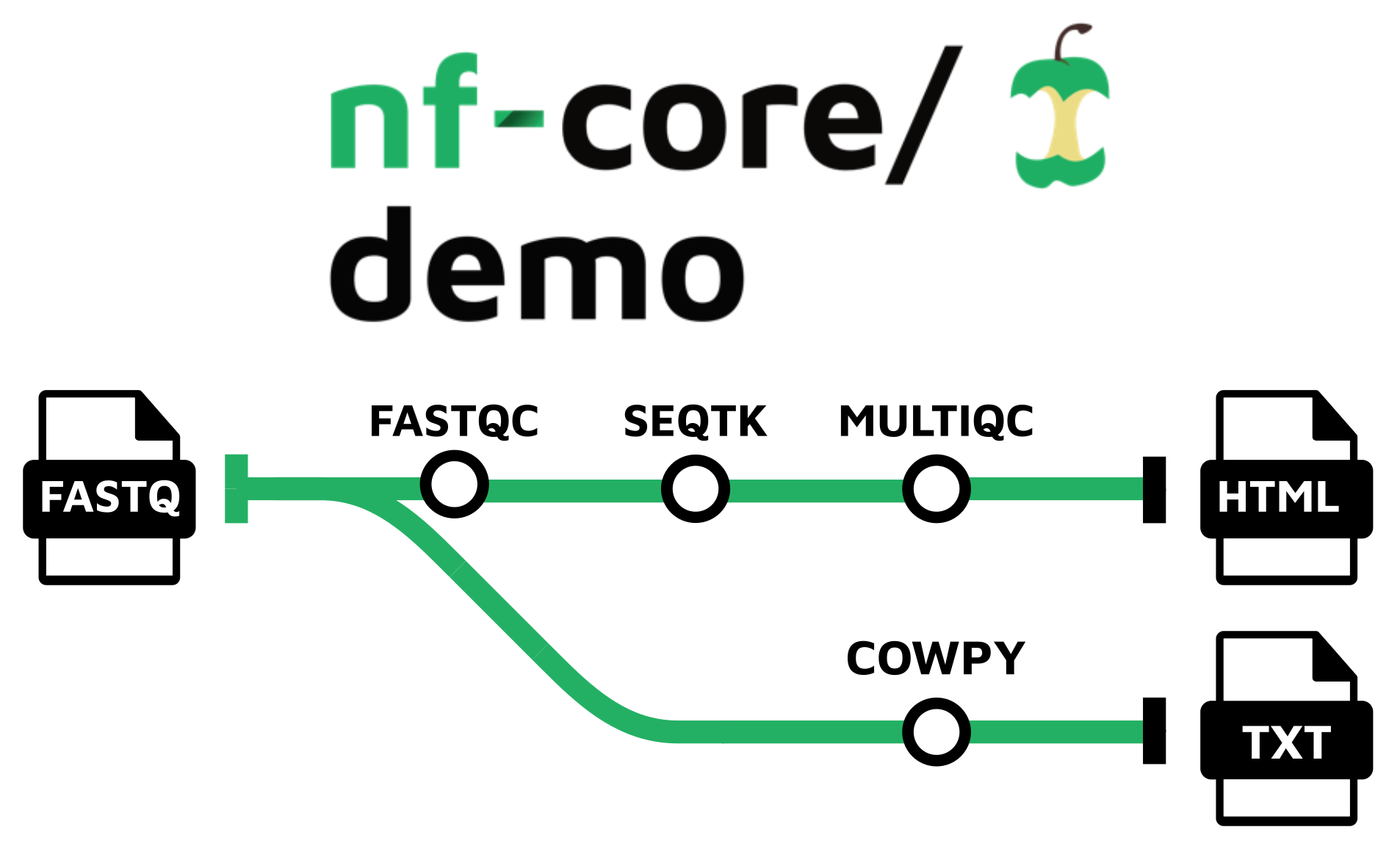
withNamematches a specific process by its fully qualified name.nf-core/demoruns four processes —FASTQC,SEQTK_TRIM,COWPY, andMULTIQC— and each has a name you can see in.nextflow.logor inpipeline_info/execution_trace.txtafter a run.withLabelmatches every process that carries a given label. All nf-core pipelines tag their processes with size labels (process_low,process_medium,process_high,process_high_memory) — see how they map to resource requests innf-core/demo’sconf/base.config. A singlewithLabelblock can adjust whole resource tiers at once.
Edit your custom.config to include both in the process block:
workDir = 'nf-work'
process {  memory = 3.GB  cpus = 1  errorStrategy = 'retry'  maxRetries    = 2
  withName: 'NFCORE_DEMO:DEMO:FASTQC' {    cpus = 1    memory = 3.GB  }
  withLabel: 'process_low' {    cpus = 1    memory = 1.GB  }}
Re-run with the -c custom.config.
nextflow run nf-core/demo -r 1.2.0 -profile test,docker -c custom.config --outdir results_customconfig3Compare results_customconfig2/pipeline_info/execution_report_<datetimestamp>.html with results_customconfig3/pipeline_info/execution_report_<datetimestamp>.html.
FASTQC should report requesting 1 CPU and 3 GB memory instead of 2 and 4 GB.
SEQTK_TRIM has also changed. It now requests 1 CPU and 1 GB instead of 2 CPUs and 4 GB.
Process labels are declared on each process definition inside the module.
For example, SEQTK_TRIM’s main.nf declares label 'process_low' on its second line.
The size labels (process_low, process_medium, process_high, process_high_memory) are standard across all nf-core pipelines.
Pass tool arguments with ext.args
ext.args is a per-process configuration value that nf-core modules use to inject extra command-line flags into the underlying tool.
It lives inside a withName selector (so it follows the same targeting rules as the previous section), and the module picks it up at runtime with def args = task.ext.args ?: ''.
By convention, nf-core pipelines collect every per-process option in a dedicated file, conf/modules.config.
It is another source of configuration loaded automatically through the pipeline’s nextflow.config.
Open nf-core/demo’s conf/modules.config to see two real uses of ext.args:
withName: FASTQC {    ext.args = '--quiet'    // ...}
withName: 'MULTIQC' {    ext.args = { params.multiqc_title ? "--title \"$params.multiqc_title\"" : '' }    // ...}
FASTQC always runs with FastQC’s --quiet mode.
MULTIQC dynamically picks up --title if the multiqc_title parameter is set.
This is why the multiqc_title value from your params.yaml flowed through into the MultiQC report.
To pass your own flags without editing the module code, override ext.args in custom.config:
workDir = 'nf-work'
process {  memory = 3.GB  cpus = 1  errorStrategy = 'retry'  maxRetries    = 2
  withName: 'NFCORE_DEMO:DEMO:FASTQC' {    memory = 3.GB    cpus = 1    ext.args = '--quiet  --nogroup'  }
  withLabel: 'process_low' {    memory = 1.GB    cpus = 1  }
  withName: 'MULTIQC' {      ext.args = { params.multiqc_title ? "--title \"$params.multiqc_title\"" : '' }  }}
Re-run with the -c custom.config.
nextflow run nf-core/demo -r 1.2.0 -profile test,docker -c custom.config --outdir results_customconfig4FASTQC picks up the new flags through task.ext.args in its main.nf.
Compare results_customconfig3/fastqc/SAMPLE1_PE/SAMPLE1_PE_1_fastqc.html and results_customconfig4/fastqc/SAMPLE1_PE/SAMPLE1_PE_1_fastqc.html in your web browser.
The ‘Per base sequence quality’ plot has changed because of the --nogroup option.
Customising ext.args is generally not recommended and can break the pipeline, because the developer has not tested these changes.
Request official support for a new tool option or argument from the pipeline developer.
Customise ext.args in a config only as a last resort.
Sibling keys you’ll see in the same file:
ext.args2,ext.args3— second and third argument sets for modules that call more than one tool.ext.prefix— overrides the prefix used for the module’s output filenames.
ext.args is the right way to pass tool-specific flags that aren’t exposed as pipeline parameters.
Never edit the module’s main.nf to add a flag — ext.args exists precisely so you can extend the command line without changing the versioned pipeline code.
For resourceLimits, executor tuning, and container registry overrides, see System requirements.
For profile precedence and shared institutional configs, see Configuration options.
Configure with environment variables
NXF_* environment variables are the outermost configuration layer.
Nextflow reads them from your shell as it starts, before it parses any config file or parameter.
Use them for settings that don’t change between runs.
For example, which Nextflow version to use, where the work directory and container cache live, and whether to operate offline.
They configure Nextflow itself, not the pipeline.
You cannot set pipeline inputs or outputs this way.
You set them like any other shell variable: with export, inline before a single command, or by adding them to your shell’s startup file.
-
Pin a Nextflow version and redirect the work directory for this run:
export NXF_VER=25.10.4export NXF_WORK=$HOME/nf-demo-worknextflow run nf-core/demo -r 1.2.0 -profile test,docker --outdir results_customenvThe version line at the top of stdout (and in
.nextflow.log) should now report25.10.4, and intermediate files should appear under$HOME/nf-demo-work/instead of./work/. -
To set a variable for a single command without exporting it, prefix the invocation:
NXF_VER=25.10.4 nextflow run nf-core/demo -r 1.2.0 -profile test,docker --outdir results_customenv2 -
To persist a variable across sessions, add the export to your shell config:
export NXF_VER=25.10.4
The NXF_* variables nf-core users reach for most often are:
NXF_VER: Pin a specific Nextflow versionNXF_HOME: Override Nextflow’s home directory (defaults to$HOME/.nextflow)NXF_WORK: Override the work directory for intermediate filesNXF_OFFLINE: Run without contacting the network (see Running pipelines offline)NXF_SINGULARITY_CACHEDIR/NXF_APPTAINER_CACHEDIR: Reuse downloaded container images across runs
For the full list, see the Nextflow environment variables reference.
NXF_* variables are distinct from pipeline parameters.
They configure how Nextflow runs, not what the pipeline does.
You cannot set --input or --outdir with an environment variable.
Put it all together
Each layer you’ve explored solves a different problem. In practice, a single run usually uses several at once. This step combines them into one invocation so you can see how they interact.
-
Set environment variables for runtime concerns that don’t change between runs:
export NXF_VER=25.10.4export NXF_WORK=$HOME/nf-demo-work -
Capture pipeline parameters in a
params-final.yamlfile so the run is reproducible:params-final.yaml outdir: my_resultsmultiqc_title: "nf-core/demo configured run" -
Put per-process overrides in
custom.config:custom.config process {withName: 'NFCORE_DEMO:DEMO:FASTQC' {cpus = 4memory = 8.GBext.args = '--quiet --nogroup'}withLabel: 'process_low' {cpus = 2memory = 4.GB}} -
Launch the run, activating the
testanddockerprofiles and passing the parameter and config files:nextflow run nf-core/demo -r 1.2.0 \-profile test,docker \-params-file params-final.yaml \-c custom.config
This single command exercises every layer the tutorial introduced. Each one is resolved independently:
- Runtime:
NXF_VERandNXF_WORKare read from the shell before Nextflow parses any config, pinning the version and redirecting intermediate files. - Configuration: config files layer in a fixed order — the pipeline’s bundled
nextflow.config(which pulls inconf/base.configandconf/modules.config) loads first, thetestanddockerprofiles override matching keys, andcustom.configoverrides them last. ThewithNameandwithLabelblocks incustom.configtherefore win for FASTQC and everyprocess_lowstep. - Parameters: values in
params.yamlset the pipeline parameters. A matching--flagon the command line would override them.
To confirm each layer took effect, check:
my_results/pipeline_info/execution_report_<datetimestamp>.html— thewithNameblock requests 4 CPUs and 8 GB for FASTQC. On this small test dataset, thetestprofile’sresourceLimits = [cpus: 2, memory: '4.GB']caps the request, and the report shows 2 CPUs and 4 GB. Drop thetestprofile (or raise itsresourceLimits) to see the full 4 CPUs and 8 GB.my_results/multiqc/nf-coredemo-configured-run_multiqc_report.html— the report title should read “nf-core/demo configured run”. (Settingmultiqc_titlealso renames the report file.)$HOME/nf-demo-work/— intermediate files should appear here instead of under./work/.
A rule of thumb for where each setting belongs:
- Environment variables for runtime concerns tied to your machine or session (Nextflow version, cache locations, offline mode).
params.yamlfor any setting the pipeline exposes as a parameter.- Profiles for reusable bundles you switch on by name (container engine, test data, institutional cluster).
custom.configfor one-off or team-specific overrides that don’t warrant a profile.
Next steps
- Learn more about configuration options (profiles, shared nf-core/configs, and precedence rules)
- Learn more about system requirements (resource limits, executors, and tool argument overrides)
- Learn more about Nextflow configuration